My First Power Automate Flow: Automating User Offboarding
Why offboarding?
I wanted to learn Power Automate with a real use case instead of a tutorial example, and user offboarding seemed like a good fit. Every company does it, it touches HR, IT and managers, and timing matters. If someone leaves on Friday and their account still works on Monday, that’s a problem.
I built everything in my own test tenant, and my goal was to keep it as basic as possible while still building it the way a company would.
The plan: lean on purpose
My first draft had two flows, a solution and a lot of moving parts. For a first project, that was too much, so I cut it down to one flow:
- HR adds a leaving employee to a SharePoint list.
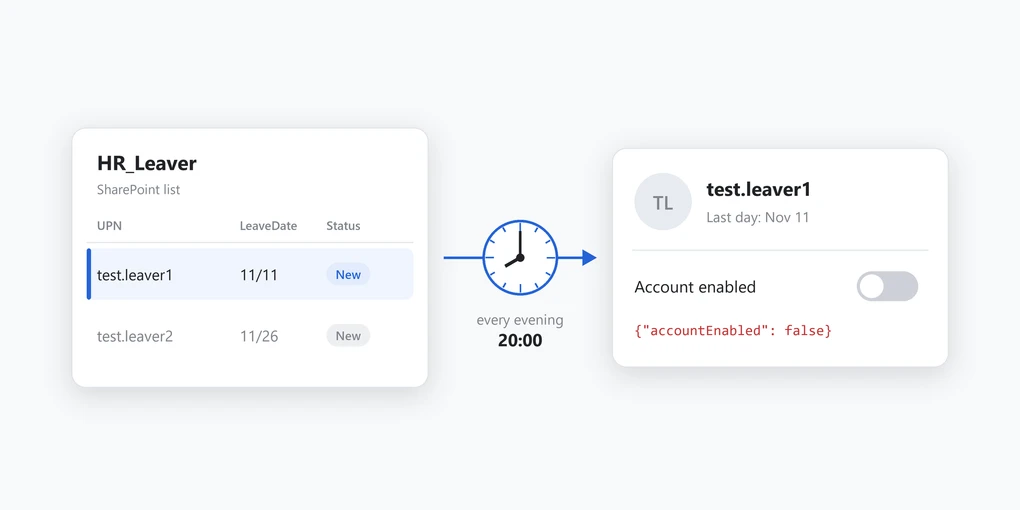
- Every evening at 20:00, a scheduled flow picks up everyone whose last day has passed.
- The flow disables their account.
The obvious alternative would have been the trigger “when an item is created”. The problem is that HR often enters a leaver weeks in advance, and a flow that starts on creation would lock the account on the day of entry, not on the last working day. That’s why the flow runs every evening instead and looks for leavers whose last day has passed:
Status eq 'New' and LeaveDate le '@{utcNow('yyyy-MM-dd')}'In this filter I used le (less than or equal) instead of eq on purpose. That way, if one run fails or HR enters someone late, the next run still catches them.
Step 1: A SharePoint list as the source of truth
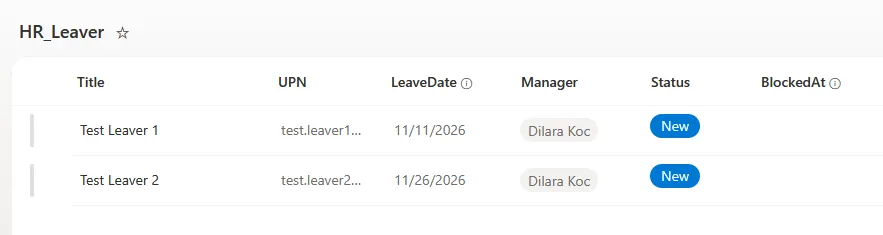
Everything starts with the list HR_Leaver, where HR enters who is leaving. Before creating the columns, I asked myself what the flow really needs in order to find the right person and report back.
| Column | Type | Why |
|---|---|---|
| UPN | Single line of text, unique values enforced | Uniquely identifies the user. Display names aren’t unique and prone to typos. |
| LeaveDate | Date | Decides when the account is disabled. |
| Manager | Person | Gives the flow the manager’s email address automatically. |
| Status | Choice: New, Blocked, Error | Fixed values prevent typos, including one for when something fails. |
| BlockedAt | Date and time | Records when the account was disabled, for auditing. |
Because the UPN column rejects duplicates, each person has only one entry. On top of that, the flow only picks up items with status New. It doesn’t write the status back yet, though, so for now it picks up the same entry every evening. That does no harm, since disabling an account twice changes nothing.
One thing I only realised later is that anyone who can add an item can get an account disabled. So I gave the list its own permissions and removed the visitors, because leaver data is personal data.
Step 2: A service account, not my account
Next I had to decide whose account the flow runs under. The flow and all its connections belong to a dedicated service account, svc-offboarding, with me as co-owner. If the flow ran under my personal account instead, my own offboarding would break it one day, and probably nobody would notice.
The service account is protected with MFA and has a clear name, so it shows up as automation in every log. On the list it has Edit rights, nothing more.
Step 3: The flow that did nothing
At first glance, my test looked like a success, because the test user was disabled. Then I noticed that a second test user had been disabled too, even though their last day was two weeks away. That made no sense, because my filter couldn’t have returned that user.
To find out what had happened, I looked at the Entra audit log. It showed that the Disable account entry wasn’t initiated by my service account, but by an application called PA-LeaverAutomation. That’s when I realised that a flow from an earlier attempt was still running in the tenant, firing on every new list item and ignoring the leave date completely.
Worse, it had also done my flow’s job. My own flow had been failing the whole time, and I only believed it worked because the end result looked right.
So I deleted the old flow and its app registration. After that, I checked the audit log again to make sure the next disabled account really came from my own flow.
Step 4: Still a 403
With the old flow gone, my flow’s real error appeared: 403 Authorization_RequestDenied.
I had started with the narrowest role I could find, Entra SOC Identity Responder, which can disable users and revoke sessions but not much else. When that failed, I tried User Administrator. Same 403.
That’s when it became clear that the role was never the whole problem. I was calling Graph through the connector HTTP with Microsoft Entra ID (preauthorized), signed in as the service account, and a delegated call like that only gets what both sides allow: the account through its role, and the connector app through its Graph scopes. In my case the role was big enough, but the connector doesn’t carry the scope needed to disable accounts.
I could have granted the connector the missing permission, but that would apply to everyone using it in the tenant. So I switched to an app registration instead.
Step 5: An app registration of its own
Since then, the flow calls Microsoft Graph with its own app registration, which has exactly two application permissions: User.EnableDisableAccount.All and User.Read.All. I chose application permissions because at 20:00 nobody is signed in that the flow could act on behalf of.
That left the question of where to keep the app’s secret. It’s stored in Azure Key Vault, and the service account is only allowed to read that one secret, which the flow fetches when it runs. I also switched on Secure inputs and Secure outputs for both actions, because otherwise the secret would still show up in plain text in the run history.
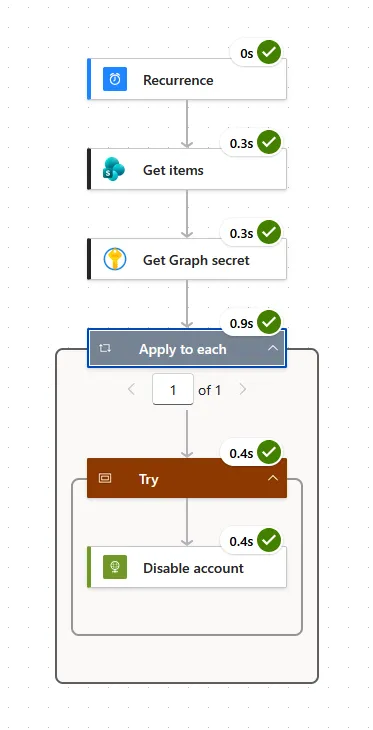
With all of that in place, the disabling itself is a single HTTP action: a PATCH to https://graph.microsoft.com/v1.0/users/<UPN> with the body {"accountEnabled": false}.
The next run worked, and this time the audit log showed my app as the one that disabled the account.

What I learned
Building this took me a lot longer than I expected. I had never worked with Power Automate before, and I had barely touched Entra. The finished flow is only a handful of actions, but I had to learn almost everything around it as I went, and that’s where most of what I learned came from.
The ghost flow taught me not to trust a result just because it looks right. If something else in the tenant can produce the same result, the audit log is the only place that tells you who actually did it.
The 403, on the other hand, taught me that a role isn’t the whole story. When you call Graph through a connector, the connector has to be allowed to do the thing as well, and that’s easy to overlook because the connection is created without any error.
What comes next
First, the flow will write the status and BlockedAt back to the list, revoke active sessions and email the manager. After that I’ll add error handling, so that a failed run sets the status to Error instead of failing silently.
I’d also like the flow to be started from an external app, such as an HR system, through a webhook or API call, so that nobody has to type the leaver into the list by hand.
Later, in a second part, I want to get rid of the secret completely by moving the flow to Azure Logic Apps with a managed identity.